Dashboard Section
The dashboard lists all of your tests and is where you run and manage them.
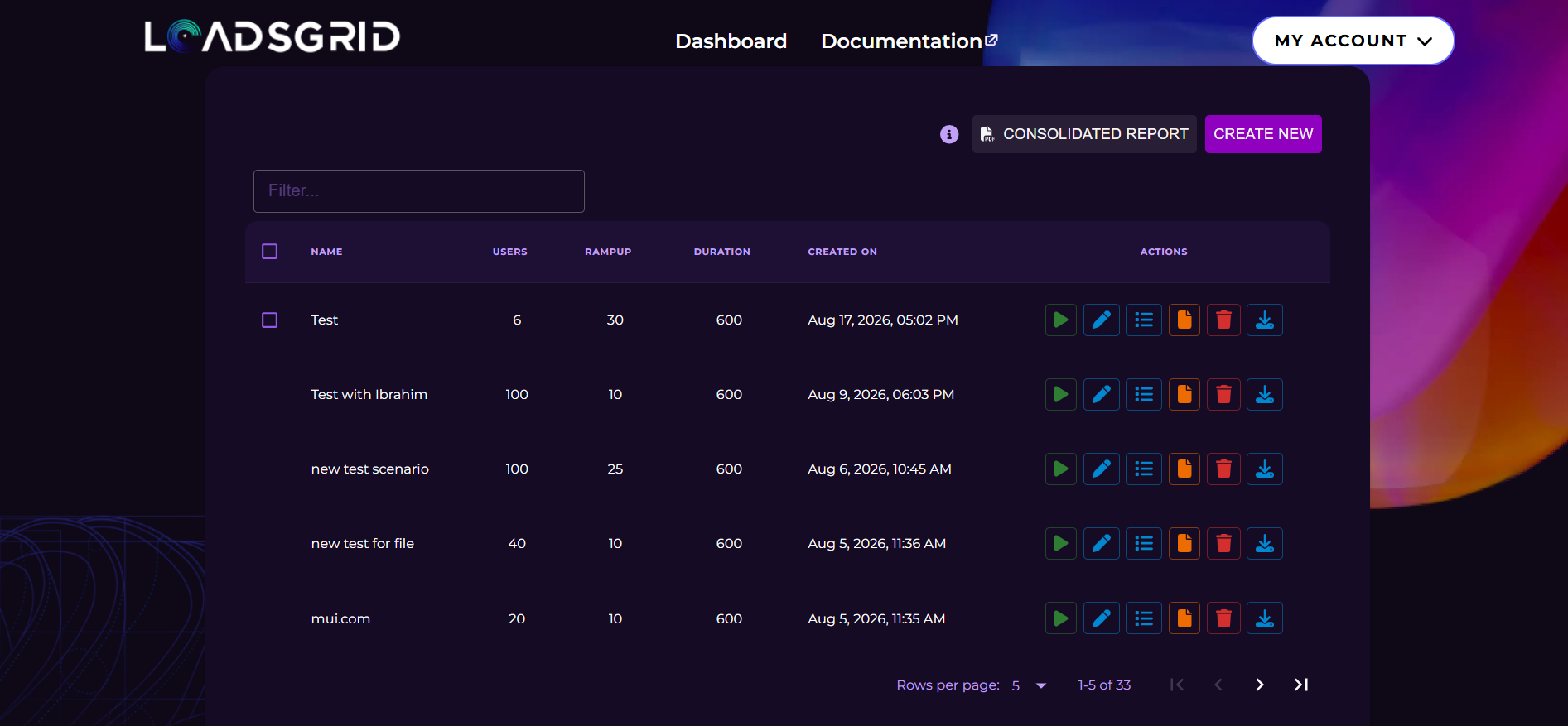
The Test Table
Each row shows the test Name, Users, Rampup, Duration and Created On date. Every column is sortable, and the Filter box above the table searches your tests by any of these values. Use the controls at the bottom of the table to change how many rows are shown per page and to move between pages.
The Actions column holds one button per operation:
| Button | What it does |
|---|---|
| ▶ Play | Starts the load test. While a test is running, this button turns into a red Stop button. See the Play Section. |
| ✏️ Edit | Opens the test for editing. |
| ☰ History | Opens the execution history of that test. |
| 📄 Copy | Creates a copy of the test. |
| 🗑 Delete | Deletes the test. |
| ⬇ Download | Downloads the JMX file of the test. |
Create New in the top right takes you to the Create Test Page.
Consolidated Report
The Consolidated Report button generates a single AI-driven executive summary that compares several of your tests side by side, instead of one report per run.
Selecting Tests
Tick the checkbox next to each test you want to include. You can select between 2 and 8 tests.
Only tests that already have a completed, reportable execution can be selected — tests with no history, with only cancelled runs, or with no results have no checkbox at all. The ⓘ icon next to the button repeats this rule.
The latest completed execution of each selected test is the one included in the report.
Generating the Report
Once at least two eligible tests are selected, the Consolidated Report button becomes active and shows how many tests are selected, for example Consolidated Report (3). Click it, review the list of executions that will be used, and start the generation.
Generation takes a while — the button shows Generating consolidated report... until it is finished. When the report is ready, you can either View in Browser or Download PDF.
If something goes wrong — too few or too many tests selected, or a test without a completed run — a message at the bottom of the screen explains what to fix.
A consolidated report here compares different tests, using the latest completed run of each. To compare several runs of the same test, use the Consolidated Report on the history page.